
1. Introduction
code-server It is an open-source tool that allows you to use VSCode in your browser without installing any software. It allows you to deploy development environments on cloud servers and code anytime with a tablet or laptop browser.
This article refers toofficial documentationBased on common requirements, suitable for Linux users (distributions such as Debian/Ubuntu, Arch, RedHat, etc.). We will introduce various installation methods, basic configurations, extended market configurations, and steps to fix C/C++plugin issues.
2. Installation
2.1 Environmental Preparation
First, update the system and install the basic dependencies (choose the command based on the distribution):
- Debian/Ubuntu:
sudo apt update && sudo apt upgrade -y
sudo apt install -y curl git build-essential gdb- Arch:
sudo pacman -Syu
sudo pacman -S --needed curl git base-devel gdb- Fedora / CentOS / RHEL:
sudo dnf update -y
sudo dnf groupinstall -y "Development Tools"
sudo dnf install -y curl git gdb
2.2 Installation method
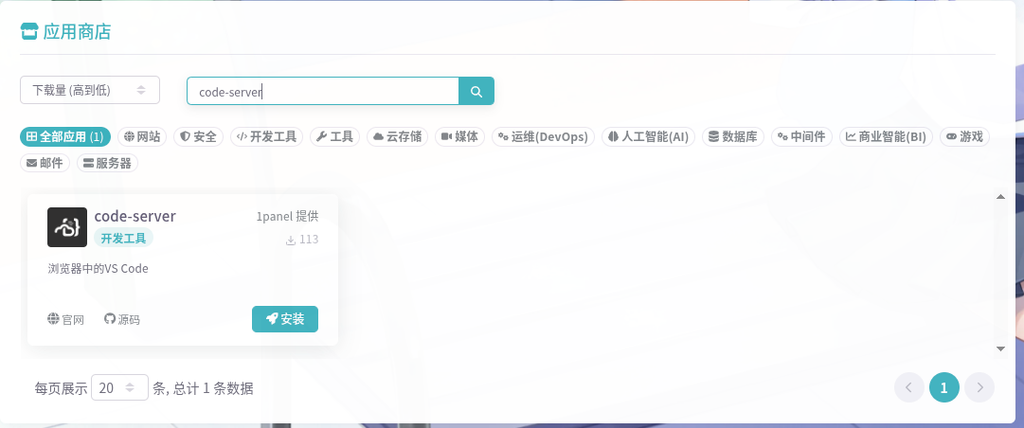
If you are a novice, do not have your own cloud server, or are concerned about the difficulty and instability of cloud server maintenance, you can also use itRain cloudsOne click installation of code server for cloud applications.
Method 1: Official script
The simplest method is applicable to most Linux distributions. In the system terminal, run the following command:
curl -fsSL https://code-server.dev/install.sh | shThe script will automatically detect the system type and attempt to install it using the system package manager; If there is no corresponding package, fallback to independent binary installation (default installation to );~/.local).
After installation, the script will give a startup command.
Method 2: Binary Files
Please enter by yourself Releases View the latest version number on the interface.
For Debian:
wget https://github.com/coder/code-server/releases/download/v4.135.0/code-server_4.135.0_amd64.deb
dpkg -i code-server_4.135.0_amd64.deb
For RedHat:
wget https://github.com/coder/code-server/releases/download/v4.135.0/code-server-4.135.0-amd64.rpm
rpm -ivh https://github.com/coder/code-server/releases/download/v4.135.0/code-server-4.135.0-amd64.rpm
For Arch, thanks to the abundant aur resources, it is possible to directly use the AUR source code-server Installation:
# 有yay
yay -S code-server
# 无yay
git clone https://aur.archlinux.org/code-server.git
cd code-server
makepkg -si
Method 3: Docker installation
mkdir -p ~/.config/code-server
docker run -d \
  --name=code-server \
  -e PUID=1000 -e PGID=1000 \
  -e TZ=Asia/Shanghai \
  -e PASSWORD=yourpassword \
  -e 'EXTENSIONS_GALLERY={"serviceUrl":"https://marketplace.visualstudio.com/_apis/public/gallery","cacheUrl":"https://vscode.blob.core.windows.net/gallery/index","itemUrl":"https://marketplace.visualstudio.com/items"}' \
  -p 8080:8080 \
  -v ~/.config/code-server:/config \
  --restart unless-stopped \
  lscr.io/linuxserver/code-server:latest
# 可自行更改端口号
3. Configuration
The default configuration is ~/.config/code-server/config.yamlAfter the first startup, it will be automatically generated and corresponding to Docker users in the container/config/config.yaml.
Editor config.yaml, modify the following fields:
bind-addr: 0.0.0.0:8080   # 监听所有地址的 8080 端口(仅本地访问用 127.0.0.1)
auth: password            # 认证方式:password / none
password: your_secure_password  # 自定义密码
cert: false               # 是否启用 HTTPS(false 为 HTTP)
If set;auth: noneNo password is required, but it is strongly not recommended to use it in a public network environment.
After modification, the code server needs to be restarted to take effect.
After configuration is complete, run:
systemctl --user enable --now code-servervisit ip:8080 Simply log in with your password.
If specific domain access is required or there is a unified port requirement, nginx reverse proxy can be configured:
server {
    listen 80;
    server_name code.example.com;
    location / {
        proxy_pass http://127.0.0.1:8080;
        proxy_set_header Host $host;
        proxy_set_header Upgrade $http_upgrade;
        proxy_set_header Connection "upgrade";
        proxy_set_header Accept-Encoding gzip;
    }
}
4. Expand the market and switch sources
The code server defaults to using the Open VSX marketplace, and some extensions may be missing or outdated. To use Microsoft's official marketplace, you can set environment variables or modify configuration files. Edit configuration file (already configured in Docker installation):
systemctl --user edit code-serverAdd the following content:
[Service]
Environment=EXTENSIONS_GALLERY={"serviceUrl":"https://marketplace.visualstudio.com/_apis/public/gallery","cacheUrl":"https://vscode.blob.core.windows.net/gallery/index","itemUrl":"https://marketplace.visualstudio.com/items"}
Save and restart.
sudo systemctl daemon-reload
sudo systemctl restart code-serverNoteUsing the official market may be affected by the network environment, and domestic servers may have slow or failed access. Consider using an image or keeping the default.
5. Fix the issue of C/C++plugins not working properly
When installing the official C/C++plugin in code server, an error occurs:
The C/C++ extension may be used only with Microsoft Visual Studio, Visual Studio for Mac, Visual Studio Code, Azure DevOps, Team Foundation Server, and successor Microsoft products and services to develop and test your applications.
This is due to Microsoft tightening the usage rights of plugins, which has affected VSCode based projects such as cursor. The current only solution is to install version 1.23.6 and turn off automatic updates.
6. Uninstall
- Script Installation(Installed to
~/.local):
rm -rf ~/.local/lib/code-server-*
rm -f ~/.local/bin/code-server
rm -rf ~/.config/code-server ~/.local/share/code-server
- Debian / Ubuntu:
sudo apt remove code-server
- RedHat / Fedora:
sudo rpm -e code-server
- Arch Linux:
sudo pacman -Rns code-server
- DockerStop and delete the container, then delete the image:
docker stop code-server
docker rm code-server
docker rmi lscr.io/linuxserver/code-server:latest
rm -rf ~/.config/code-server
7. Frequently Asked Questions and Troubleshooting (FAQ)
7.1 Unable to start
Symptom: Running code-server Either exit immediately when using the systemd service, or report an error stating that the port cannot be listened to.
Possible reasons and solutions
- The port is occupied.
- Check port occupancy:
sudo ss -tulpn | grep :8080(or the port you configured) - If occupied, can be replaced
config.yamlinbind-addrPort, or terminate the occupying process:sudo kill -9 <PID> - Note: If using privileged ports such as 80 or 443, you need to run it as root or assign it to
CAP_NET_BIND_SERVICEability
- Check port occupancy:
- Configuration file syntax error
- check
~/.config/code-server/config.yamlIs the YAML format correct (indentation, spaces after colons). - Use
code-server --helpView available configuration items or temporarily overwrite configuration tests with environment variables:code-server --bind-addr 0.0.0.0:8080 --auth none - If the startup is successful, it indicates that there is an error in the configuration file. Check and repair each item one by one.
- check
- Insufficient permissions
- If installing as a regular user, try using
sudoStartup may cause confusion in permissions. It is recommended to use user level systemd services or ensure that the directory is writable. - Check data directory (default)
~/.local/share/code-server)And the owner of the configuration directory:ls -ld ~/.config/code-server ~/.local/share/code-server - If the owner is root, execute
sudo chown -R $USER:$USER ~/.config/code-server ~/.local/share/code-server.
- If installing as a regular user, try using
- Dependency deficiency
- Some streamlined systems may be missing
libxkbcommonThelibgtk-3Waiting for a graphics library (even in headless mode). Install the corresponding dependencies based on the distribution, such as Ubuntu:sudo apt install -y libxkbcommon0 libgtk-3-0 libgbm1
- Some streamlined systems may be missing
General investigationView detailed logs
journalctl --user -u code-server -f          # 用户服务
sudo journalctl -u code-server -f            # 系统服务
code-server --verbose                         # 前台运行,输出调试信息
7.2 Unable to access
SymptomThe service has started, but the browser cannot open the page.
Possible reasons and solutions
- Firewall not released
- Check firewall status:
sudo ufw status # Ubuntu sudo firewall-cmd --list-all # Fedora/CentOS - Release port (taking 8080 as an example):
sudo ufw allow 8080/tcp sudo firewall-cmd --add-port=8080/tcp --permanent && sudo firewall-cmd --reload - The cloud server also needs to open corresponding ports in the security group.
- Check firewall status:
- The binding address is 127.0.0.1
- check
config.yamlinbind-addrIf it is127.0.0.1:8080Can only be accessed locally. - change to
0.0.0.0:8080To monitor all network interfaces or set specific internal IP addresses (such as192.168.1.100:8080).
- check
- Reverse proxy configuration error
- Ensure that the proxy passes the necessary header information, especially
UpgradeandConnectionUsed for WebSocket. - Example of Proper Nginx Configuration:
location / { proxy_pass http://127.0.0.1:8080; proxy_set_header Host $host; proxy_set_header X-Real-IP $remote_addr; proxy_set_header X-Forwarded-For $proxy_add_x_forwarded_for; proxy_set_header Upgrade $http_upgrade; proxy_set_header Connection "upgrade"; proxy_read_timeout 86400; } - Check Nginx error logs
/var/log/nginx/error.logCommon errors include 502 (backend not started) and 404 (path error).
- Ensure that the proxy passes the necessary header information, especially
- HTTPS certificate issue
- If enabled
certEnsure that the certificate and private key paths are correct and readable. - When using a self signed certificate, the browser needs to manually trust it; It is recommended to use Let's Encrypt in the production environment and terminate TLS through a reverse proxy.
- If enabled
7.3 Extension installation failed
SymptomAfter clicking to install in the extension market, there is no response for a long time, or errors such as "unable to download extension" or "XHR failed" are reported.
Possible reasons and solutions
- network issue
- Default Open VSX Market(
open-vsx.org)Perhaps due to slow regional or firewall access. - Test connectivity:
curl -I https://open-vsx.org - Solution:
- Using the domestic mirror market, such as in
config.yamlAdd:extensions-gallery: serviceUrl: https://registry.npmmirror.com/-/vscode/marketplace itemUrl: https://registry.npmmirror.com/-/vscode/item - Or access through a proxy server and set environment variables
HTTPS_PROXY.
- Using the domestic mirror market, such as in
- Default Open VSX Market(
- Market URL configuration error
- environment variable
EXTENSIONS_GALLERYIt must be a valid JSON and contain three fields (serviceURL, cacheURL, itemURL). - Verify if the configuration is effective: After startup, open the browser developer tool and check the market address in the network request.
- environment variable
- Certificate Issue
- Enterprise proxies or firewalls may intercept HTTPS and replace certificates, resulting in verification failures.
- Temporarily disable certificate verification (not recommended): Set environment variables
NODE_TLS_REJECT_UNAUTHORIZED=0. - Long term solution: Import the enterprise root certificate into the system trust repository, or use
--extensions-dirManual installation.vsix.
- Insufficient permissions
- The default directory for extended installation is
~/.local/share/code-server/extensionsIf it cannot be written, it will lead to failure. Check and repair:chmod 755 ~/.local/share/code-server/extensions
- The default directory for extended installation is
- Manual installation
- from Open VSX Or download from Microsoft Marketplace
.vsixFile and then run:code-server --install-extension /path/to/extension.vsix
- from Open VSX Or download from Microsoft Marketplace
7.4 White screen after login
SymptomAfter entering the password, the page is blank or briefly displays that there is no content after loading the animation.
Possible reasons and solutions
- Browser cache
- Force refresh: Ctrl+Shift+R (or CMD+Shift+R).
- Clear site data: Browser settings → Privacy and security → Clear browsing data → Select 'cached images and files'.
- Replace the browser or use incognito mode for testing.
- WebSocket blocked by proxy
- The code server relies on WebSocket for real-time communication. If the reverse proxy does not correctly forward the WebSocket upgrade request, it will result in connection failure and a white screen.
- Check the proxy configuration
UpgradeandConnectionHead (see section 7.2 Reverse Proxy). - When using Nginx, confirm
proxy_read_timeoutSufficiently long; Caddy supports WebSocket by default without additional configuration.
- Browser does not support or disable WebSocket
- Try changing to a modern browser (Chrome/Firefox/Edge latest version) and ensure that there are no plugins blocking WebSocket.
- Workplace loading error
- Delete workspace cache:
rm -rf ~/.local/share/code-server/User/workspaceStorage/*Restart the service afterwards. - Try opening another directory as a workspace and check if the directory has insufficient permissions or contains damaged files.
- Delete workspace cache:
- Server rendering error
- View code server logs and search for
ERRORorStack traceCommon issues include incompatible versions of Node.js (requirement ≥ 18). - Upgrade or downgrade the version of Node.js, or use the official packaged binary file (with the correct version built-in).
- View code server logs and search for
Plugin lost after 7.5 update
SymptomAfter upgrading the code server, all previously installed extensions disappear.
Root cause analysis
- Code server defaults to installing extensions in
~/.local/share/code-server/extensionsThis directory is usually not overwritten. - If upgrading using official scripts, the old version directory may be cleaned up; Or the directory may not be mounted when using Docker.
Solution
- Confirm the location of the extended directory
- View configuration files or startup logs
extensions-dirThe path:code-server --help | grep extensions-dir - Default:
~/.local/share/code-server/extensions.
- View configuration files or startup logs
- restore backup
- If the directory has been backed up before, copy it back directly.
- Otherwise, reinstall the required extensions (it is recommended to keep a list of commonly used extensions).
- preventive measures
- Docker deploymentMount the extended directory to the host computer. In
docker runAdd:-v ~/.config/code-server:/config - Native installationBackup before upgrade:
tar -czf code-server-extensions.tar.gz ~/.local/share/code-server/extensions - Configure independent extension directory: In
config.yamlSet a fixed path in (e.g/opt/code-server-extensions)And ensure that the upgrade process does not clear the directory.
- Docker deploymentMount the extended directory to the host computer. In
- auto-sync
- Use the Settings Sync plugin or Git management
extensions.jsonInstall in bulk using the command line in a new environment:cat extensions.txt | xargs -L1 code-server --install-extension
- Use the Settings Sync plugin or Git management
7.6 Other common problems
- Forgot password: Editor
config.yamlinpasswordFields, simply restart the service. - CPU usage is too high: It may be due to too many file monitors, increasing size
--max-memoryOr use--disable-workspace-trustDisable unnecessary extensions. - Chinese garbled text: Search in settings
files.encodingchange toutf8, and install Chinese fonts:sudo apt install fonts-noto-cjk