
Thank youRain cloudThe computing services provided.
1. Motivation for Migration
The original website was deployed on a shared virtual host, mainly used for personal blogs (WordPress) and Git file synchronization services (rewritten in PHP) Git Server). Virtual hosting has significant limitations in terms of functionality and resources:
- Poor concurrency capabilityWhen there are 2-3 users accessing at the same time, a frequent 500 error occurs. Viewing the virtual host panel shows that the CPU and memory resource usage has been approaching 100% for a long time, causing the PHP process to be forcibly terminated.
- Unable to install Redis and other extensionsVirtual hosting does not support high-performance components such as Redis and OPcache, and WordPress caching can only rely on file caching, resulting in high database query pressure.
- Environment cannot be customizedUnable to modify PHP configuration (e.g;
memory_limitThemax_execution_time)Unable to install custom Nginx modules and use new features such as HTTP/2 and QUIC. - Low degree of freedomThe number of domain name bindings is limited (6), file permissions are restricted, and some plugins cannot run properly.
After comparing multiple cloud server vendors, the final decision was madeRain cloudThe entry-level cloud server for Los Angeles Zone 1 (1C1G) has a latency between 150-250ms and an access speed of up to 10MB/s. The latency and internet speed data are based on the local telecommunications network and are transmitted through;ping And curl Download the speed measurement file for reference only
2. Comparison of pre – and post environment
| Virtual Host | cloud server | |
| Website Space | 2048MB | 30GB |
| Database space | 256MB | 30GB |
| Monthly traffic | 128GB | 1024GB |
| network bandwidth | 8Mbps | 100Mbps |
| Domain binding | 6 of them | Theoretical infinity |
| degrees of freedom | share | exclusive |
| Price | 16.99 yuan/month | 12.5 yuan/month (first month) 22.5 yuan/month |
3. Migration preparation
3.1 Asset List
- Website Files:/www/wwwroot/, 670MB in total (including WordPress core, themes, plugins, and Git service code)
- databaseOne, totaling 40.1MB
- domain name:blog.vblg.top, git.vblg.top
- SSL certificateDownload PEM format certificate
- Scheduled TaskThere are 2 cron tasks on the virtual host (WordPress automatic update, Git repository regular backup).
three point two Backup strategy
- Stop all real-time tasksDisable cron services and services that may update databases (such as comment areas and automatic update plugins) in the management backend.
- database backupExport the database using PHPMyAdmin, select SQL format, encode as utf8mb4, and compress as gzip.
- file backupBy using the file manager in the virtual host panel
/www/wwwrootPackage the directory as tar.gz and download it locally. - Remote retentionBackup files and save them on the virtual host at the same time;
/backupEnsure to keep the directory and local computer for at least 7 days.
3.3 Rollback Plan
- DNS TTL adjustmentReduce the TTL of domain DNS from the default 600 seconds to 300 seconds in advance to accelerate the switching speed.
- Preserve the original environmentAfter the migration is completed, the virtual host should be retained for at least 7 days to ensure that it can be rolled back at any time.
- Local hosts testingBefore officially switching DNS, simulate domain name pointing to the new server by modifying the local hosts file and conduct thorough testing.
4. Implementation process (according to timeline)
4.1 Stop real-time tasks (2026.08.19 09:05)
Log in to the virtual host control panel and stop all services that may generate data writes:
- In
wp-config.phpAdd indefine('DISABLE_WP_CRON', true);This line of code needs to be placed in;/* That's all, stop editing! */Previously) - Use
WP Maintenance ModePlugin, or in the theme;header.phpTemporarily add maintenance prompt banners. - Turn off the comment function in the "Settings ->Discussion" section of the WordPress backend, or temporarily disable comment writing using maintenance mode plugins.
- Disable automatic update plugins and Git synchronization services.
- Confirm that services related to purchasing, such as WooCommerce, have been discontinued (this service is not available in this case, but please note).
resultThe website remains accessible, but the top displays a "under maintenance" announcement, and the database no longer generates new writes.
4.2 Purchase Cloud Server and Install System (August 19, 2026 09:12)
- Purchase an entry-level instance (Los Angeles District 1) on the Rain Cloud console.
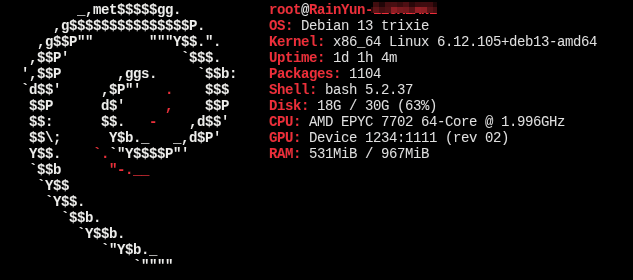
- Install operating system: Debian 13.
- Configure security group: Only open ports 22 (SSH), 80 (HTTP), and 443 (HTTPS), and restrict SSH source IP.
- RemarkFor beginners, consider using pagoda panels; 1Panel is not recommended on small memory machines. This case adopts manual compilation and installation.
4.3 Backup Files and Download (2026.08.19 09:30)
- file backupThrough the virtual host file manager
/www/wwwroot/pack - database backupLog in to PHPMyAdmin, select the database, export in SQL format, with a character set of utf8mb4.
- Verification: Used on this machine md5sum Calculate the MD5 value of two backup files and record it for subsequent integrity verification.
4.4 Installing Required Software on Cloud Server (August 19, 2026 09:35-August 20, 2026 08:03)
To restore the virtual hosting environment first, install Nginx, PHP, and MySQL (MariaDB). Considering performance and customization requirements, adoptSource code compilation and installationThe version is as follows:
- Nginx 1.30.4
- PHP 8.5.9
- MariaDB 11.8.6
4.4.1 Compilation and installation time
| software | Compilation time | Remark |
|---|---|---|
| Nginx | About 10 minutes | Enable modules such as HTTP/2, SSL, gzip, etc |
| PHP | About 30 minutes | Please note to install the required extensions such as mysqli, pdo-mysql, gd, curl, zip, opcache, redis, intl, and mbstring simultaneously |
| MariaDB | About 4 hours | The compilation process is relatively long, and binary packages can also be used for quick installation |
4.5 Environment Configuration and Data Recovery (2026.08.20 08:17)
4.5.1 Creating Nginx Site Configuration
For blog.vblg.top And git.vblg.top Create Nginx configuration files separately, examples (including QUIC support):
# /etc/nginx/conf.d/blog.vblg.top.conf

# HTTP 强制跳转 HTTPS
server {
    listen 80;
    listen [::]:80;
    server_name blog.vblg.top;

    # 用于 ACME 证书验证(如 certbot)
    location ^~ /.well-known/acme-challenge/ {
        root /var/www/letsencrypt;
    }

    location / {
        return 301 https://$host$request_uri;
    }
}

# HTTPS 主服务
server {
    listen 443 ssl http2;
    listen [::]:443 ssl http2;
    listen 443 quic;                # 启用 HTTP/3 (QUIC)
    listen [::]:443 quic;

    server_name blog.vblg.top;

    root /var/www/vblg.top;
    index index.php index.html index.htm;

    # SSL 证书
    ssl_certificate     /etc/nginx/ssl/vblg.top/fullchain.pem;
    ssl_certificate_key /etc/nginx/ssl/vblg.top/privkey.pem;

    # SSL 协议与加密套件
    ssl_protocols TLSv1.2 TLSv1.3;
    ssl_ciphers ECDHE-ECDSA-AES128-GCM-SHA256:ECDHE-RSA-AES128-GCM-SHA256:ECDHE-ECDSA-AES256-GCM-SHA384:ECDHE-RSA-AES256-GCM-SHA384:ECDHE-ECDSA-CHACHA20-POLY1305:ECDHE-RSA-CHACHA20-POLY1305;
    ssl_prefer_server_ciphers on;
    ssl_session_cache shared:SSL:10m;
    ssl_session_timeout 10m;
    ssl_session_tickets on;

    # HSTS 与 HTTP/3 宣告
    add_header Strict-Transport-Security "max-age=31536000; includeSubDomains" always;
    add_header Alt-Svc 'h3=":443"; ma=86400' always;

    # 日志
    access_log /var/log/nginx/vblg.top.access.log;
    error_log  /var/log/nginx/vblg.top.error.log;

    # 禁止访问敏感文件
    location ~* \.(user\.ini|htaccess|htpasswd|env|git|svn|project|DS_Store|sql|log|md|yml|yaml|lock)$ {
        deny all;
    }

    # 禁止访问敏感目录
    location ~* /(\.git|\.svn|\.env|node_modules|vendor)/ {
        deny all;
    }

    # WordPress 伪静态
    location / {
        try_files $uri $uri/ /index.php?$args;
    }

    # PHP 处理
    location ~ \.php$ {
        try_files $uri =404;
        include fastcgi_params;
        fastcgi_pass unix:/run/php/php8.5-fpm.sock;
        fastcgi_index index.php;
        fastcgi_param SCRIPT_FILENAME $document_root$fastcgi_script_name;
        fastcgi_param PATH_INFO $fastcgi_path_info;
    }

    # 静态资源缓存
    location ~* \.(gif|jpg|jpeg|png|bmp|swf|ico)$ {
        expires 30d;
        access_log off;
    }

    location ~* \.(js|css)$ {
        expires 12h;
        access_log off;
    }

    # ACME 验证目录
    location ^~ /.well-known/acme-challenge/ {
        root /var/www/letsencrypt;
    }
}
This configuration assumes that Nginx has compiled QUIC support; If HTTP/3 is not enabled, please remove it;listen 443 quic; And listen [::]:443 quic; Two lines, and remove Alt-Svc Head.
4.5.2 Importing Database
Use mysql -u root -p wordpress < /path/to/wordpress_backup.sql Import
4.5.3 Upload and Extract Website Files
4.5.4 Modifying Configuration Files
Taking WordPress as an example, modify wp-config.php:
define('DB_NAME', 'wordpress');
define('DB_USER', 'wordpress');
define('DB_PASSWORD', 'strong_password');
define('DB_HOST', 'localhost');
4.5.5 Importing SSL Certificates
Upload PEM format certificate and private key to;/etc/nginx/ssl/And reference it in Nginx configuration.
4.6 Conduct necessary tests (2026.08.20 08:50)
4.6.1 File Integrity Verification
Upload on the server;backup.tar.gz Calculate MD5 and compare it with the locally recorded compressed MD5.
Spot check as follows wp-config.php Wait for the file to ensure normal operation.
4.6.2 Temporary IP Binding Test
Modify the local hosts file to;blog.vblg.top And git.vblg.top Point to the new server IP.
Test steps:
- Visit
http://blog.vblg.top/Confirm that the redirect is to HTTPS and the page is functioning properly. - Accessing the WordPress backend;
/wp-admin/Can log in normally. - Test Git service:
git clone https://git.vblg.top/repo.gitIt's normal. - Check Nginx access logs and error logs for fatal errors.
- Use
curl -I https://blog.vblg.top/Confirm returns 200, HTTP/2 takes effect.
4.7 Online (August 20, 2026 09:05)
- Log in to the domain name DNS management backend and backup the original DNS records (record A points to the virtual host IP).
- Modify Record A: Move to www And git The A record points to the new server IP.
- Due to the TTL being reduced to 300 seconds earlier, theoretically it can take about 5 minutes to take effect; However, due to the impact of local operator DNS caching, it may take longer to fully take effect.
- Observe Nginx access logs to confirm that the new server has received the request.
- Continuously monitor for 10 minutes, confirm no abnormalities, and complete migration.
Rollback planIf there is a serious problem (such as database connection failure, website inaccessible), immediately change the DNS A record back to the original virtual host IP, and the website can be restored after the resolution takes effect.
5. Step on the pit
5.1: PHP is unable to connect to the database
phenomenon500 errors occurred while accessing the website, and the PHP error log shows SQLSTATE[HY000] [2002] Connection refused.
troubleshooting process:
- Execute
lsof -i:3306MariaDB was found not listening on port 3306. - Execute
systemctl status mariadbThe service is not running. - View MariaDB error logs;
/data/mysql/error.log, ReminderCan't start server: Bind on TCP/IP port: Address already in use.
ReasonThe residual process is occupying port 3306, causing MariaDB startup failure and service not running.
potential safety hazardPreviously configured; bind-address = 0.0.0.0 And the firewall does not restrict 3306, which poses an exposure risk.
solveAfter cleaning up residual processes, start MariaDB and change it to;bind-address = 127.0.0.1Meanwhile, keep the firewall from releasing 3306.
preventive measuresAfter compilation and installation, check the service listening status and firewall rules to ensure that the database is only open locally.
5.2: WordPress backend cannot upload files
phenomenonWhen logging into the WordPress backend and uploading media files, it prompts "Unable to create directory" wp-content/uploads/2026/08”.
ReasonAfter extracting the file,wp-content/uploads The directory owner is root, Permission is 755, and the PHP-FPM running user is;wwwNo write permission.
Solution:
chown -R www:www /var/www/vblg.top/

# 目录 755,文件 644
find /var/www/vblg.top/ -type d -exec chmod 755 {} \;
find /var/www/vblg.top/ -type f -exec chmod 644 {} \;

# wp-config.php 建议 640
chmod 640 /var/www/vblg.top/wp-config.php
preventive measuresUnified execution after decompression;chown -R www:www Adjust directory permissions.
6. Appendix
- Nginx official documentation
- PHP Official Manual
- MariaDB official documentation
- Yuyun official website
PostscriptAlthough this migration took a long time (mainly due to compilation and installation), the entire process was relatively smooth, thanks to sufficient backup and testing. The migrated cloud server provides powerful performance and flexibility for the website, and lays a solid foundation for subsequent extensions such as Redis, HTTP/2, and automatic backup. If you are also planning to migrate from virtual hosting to cloud servers, I hope this article can provide you with reference.