
Important NoticeThis article is only for testing experience and is not a deployment guide for production environments. DeepSeek Harness(
dsh)Still in the testing/developer preview phase, interfaces, configurations, plugin behavior, CLI parameters, and web UI may undergo destructive changes at any time. Please do not directly use this solution to carry production business, sensitive data, or long-term public network services.
If you don't want to tinker: you can use itrain cloudCloud application function, one click deployment.
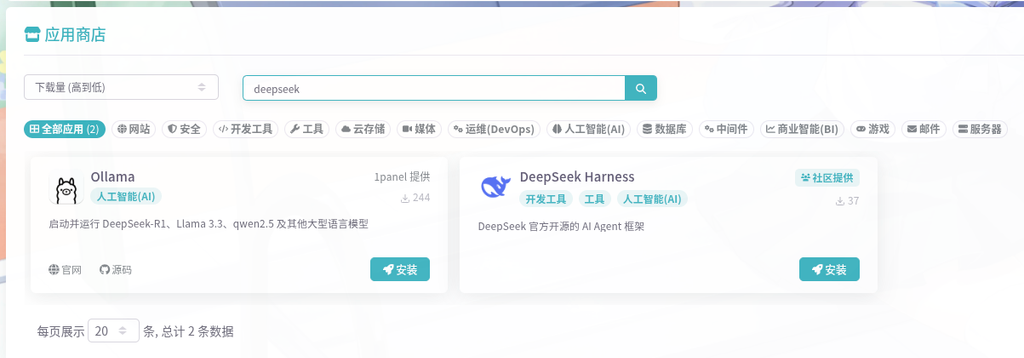
DeepSeek Harness(dsh)It is DeepSeek AI's open-source Agent Harness, which adopts a "everything is a plugin" architecture. The objective of this article is to deploy DeepSeek Harness Web UI on a cloud server or internal machine, and achieve domain name or pure IP access through Nginx or Caddy reverse proxy+Basic Auth; HTTPS can be selected based on testing conditions.
Attention:dsh Default only listening 127.0.0.1, does not support direct binding 0.0.0.0Therefore, do not attempt to expose its port directly to other machines on the public or internal network. The correct approach is to let Nginx or Caddy listen 80/443Reverse proxy to the local machine again 127.0.0.1:3080.
In this paper Nginx and Caddy are peer reverse proxy options, choose between the two;Certbot is only used for Nginx, Caddy does not require Certbot.
1. Final architecture
浏览器 / Web UI
      |
      | 方案A: Nginx + Basic Auth + Certbot HTTPS
      | 方案B: Caddy + Basic Auth + 自动 HTTPS / 纯 IP HTTP
      v
Nginx / Caddy :80 / :443
      |
      | HTTP + WebSocket
      v
dsh 127.0.0.1:3080
      |
      v
插件、模型、工具、后端依赖
Key points:
dshOnly monitor the local device and do not directly expose the public or internal network.- Nginx/Caddy is responsible for reverse proxy, Basic Auth, and WebSocket.
- When accessing purely through IP,
--trusted-hostFill in the actual access IP, for example123.123.123.123or192.168.1.10. - When accessing a domain name,
--trusted-hostFill in the actual domain name, for exampledsh.example.com. - Cloud security group/firewall only open
22The80The443Don't open up3080. - Choose between two reverse proxy layers:
- Plan A: Nginx, Apply for HTTPS using Certbot.
- Option B: Addy, HTTPS is automatically processed by Caddy and does not use Certbot.
2. Prepare cloud servers
Taking Debian 13 as an example. Security group/firewall recommendations:
| port | Usage | source |
|---|---|---|
| twenty-two | SSH | Only your fixed IP |
| eighty | HTTP | public network |
| four hundred and forty-three | HTTPS | public network |
| three thousand and eighty | dsh | Don't open up |
3. Install Node.js
DeepSeek Harness is distributed through npm, first install Node.js.
curl -fsSL https://deb.nodesource.com/setup_24.x | sudo -E bash -
sudo apt install -y nodejs
node -v
npm -v
4. Starting dsh locally for the first time
Do not allow external access yet, first confirm that DSH itself can run.
npx -y @deepseek-ai/dsh --profile web --no-open --port 3080 --trusted-host dsh.example.com
Parameters are based on actual conditions --help To be accurate. There is no desktop environment on the server, it must be added --no-openOtherwise, it may attempt to open the browser.
The first run will download the npm package, please wait a moment. After starting to run, it will output an address with an access token.
Check the listening address after startup:
sudo ss -lntp | grep 3080
You should see something similar:
LISTEN 0 511 127.0.0.1:3080 0.0.0.0:*
Local verification:
curl -I -H "Host: dsh.example.com" http://127.0.0.1:3080
Being able to return HTTP responses is sufficient.
5. Guarding DSH with Systemd
ExplanationThe following will be run as root for testing purposes only. It is not recommended to run web services as root in production environments. If used for a long time, please create a dedicated user and limit permissions.
sudo npm install -g @deepseek-ai/dsh
Confirm executable file path:
command -v dsh
usually /usr/bin/dshReplace the command in ExecutStart with the actual path.
Create service file:
sudo tee /etc/systemd/system/dsh.service > /dev/null <<'EOF'
[Unit]
Description=DeepSeek Harness Web UI
After=network.target

[Service]
Type=simple
User=root
Group=root
WorkingDirectory=/root

# 若为纯 IP 方案,请把 --trusted-host 改为实际访问 IP
ExecStart=/usr/bin/dsh --profile web --no-open --port 3080 --trusted-host dsh.example.com

Restart=on-failure
RestartSec=5

[Install]
WantedBy=multi-user.target
EOF
Start and set the startup auto start:
sudo systemctl daemon-reload
sudo systemctl enable --now dsh
View logs and obtain access token:
sudo systemctl status dsh
The log will output an address with an access token. If you haven't seen it, you can try:
sudo journalctl -u dsh --no-pager | grep -i token
6. Install and configure reverse proxy and Basic Auth: Choose between Nginx or Caddy
due to dsh not supported --bind 0.0.0.0You need to install Nginx or Caddy as a reverse proxy and configure Basic Auth and WebSocket. Both have the same level of functionality, just choose one.
- select NginxContinuing with 6.1, use Certbot for HTTPS in the future, see 7.1.
- select CaddyDirectly refer to 6.2, Caddy automatically handles HTTPS without the need for Certbot, as shown in 7.2.
6.1 Plan A: Nginx+Basic Auth+Reverse Proxy+WebSocket
6.1.1 Installing Nginx and Basic Auth Tools
sudo apt install -y nginx apache2-utils
Create a Basic Auth user:
sudo htpasswd -B -C 10 -c /etc/nginx/.htpasswd admin
Note:-c It will overwrite existing files. First creation available; Do not add users in the future -cFor example:
sudo htpasswd -B -C 10 /etc/nginx/.htpasswd 新用户名
View file:
cat /etc/nginx/.htpasswd
6.1.2 Create a site configuration that only listens to 80
Create site configuration:
sudo tee /etc/nginx/sites-available/dsh.conf > /dev/null <<'EOF'
server {
    listen 80;
    listen [::]:80;
    server_name dsh.example.com;

    location ^~ /.well-known/acme-challenge/ {
        auth_basic off;
        root /var/www/html;
        default_type text/plain;
    }

    auth_basic "DeepSeek Harness";
    auth_basic_user_file /etc/nginx/.htpasswd;

    client_max_body_size 100m;

    location / {
        proxy_pass http://127.0.0.1:3080;
        proxy_http_version 1.1;

        proxy_set_header Host $host;
        proxy_set_header X-Real-IP $remote_addr;
        proxy_set_header X-Forwarded-For $proxy_add_x_forwarded_for;
        proxy_set_header X-Forwarded-Proto $scheme;

        proxy_set_header Upgrade $http_upgrade;
        proxy_set_header Connection $connection_upgrade;

        proxy_buffering off;
        proxy_read_timeout 3600s;
        proxy_send_timeout 3600s;
    }
}
EOF
6.1.3 Configuring WebSocket Upgrade Map
Place the map in an HTTP context, such as creating a new one /etc/nginx/conf.d/ws-upgrade.conf:
sudo tee /etc/nginx/conf.d/ws-upgrade.conf > /dev/null <<'EOF'
map $http_upgrade $connection_upgrade {
    default upgrade;
    ''      close;
}
EOF
6.1.4 Enable Site and Verify HTTP
Enable site:
sudo rm -f /etc/nginx/sites-enabled/default
sudo ln -sf /etc/nginx/sites-available/dsh.conf /etc/nginx/sites-enabled/dsh.conf
sudo nginx -t && sudo systemctl reload nginx
At this point, you can first authenticate through HTTP:
curl -I -H "Host: dsh.example.com" http://127.0.0.1
It can also be accessed through a browser http://dsh.example.comA Basic Auth login box should pop up. Enter the previous one admin And password. If an access token is required, copy the address with the access token mentioned earlier and add it 127.0.0.1 change to dsh.example.com.
6.1.5 Validating WebSocket
Open developer tools → Network → WS in the browser and check if there is a successful WebSocket connection.
If returning 101 Switching Protocols Or similar upgrade response, indicating that the WebSocket path is basically normal. The reverse proxy layer requires actual verification through the browser.
The HTTPS configuration of Nginx can be found in section 7.1.
6.2 Scheme B: Addy+Basic Auth+Reverse Proxy+WebSocket
Caddy has good support for WebSocket and usually does not require manual configuration Upgrade / Connection Head. Caddy will also automatically handle HTTPS, so the domain name scheme will automatically apply for certificates; The pure IP solution is described below.
6.2.1 Install Caddy and Generate Basic Auth Hash
Install Caddy according to the official documentation or system package manager. Assuming that you have already installed it caddy Command.
Generate bcrypt hash:
caddy hash-password
Follow the prompts to enter the password and get something similar $2a$14$... Write down the hash and fill it into the Caddyfile later.
Caddy doesn't need it htpasswdAnd there is no need for Certbot.
6.2.2 Domain Name Scheme Caddyfile
dsh.example.com {
    basic_auth {
        admin $2a$14$你的bcrypt哈希
    }

    reverse_proxy 127.0.0.1:3080 {
        header_up Host {host}
        header_up X-Forwarded-Proto {scheme}
        flush_interval -1
    }
}
turn $2a$14$你的bcrypt哈希 Replace with 6.2.1 caddy hash-password The generated hash.
Caddy will automatically apply for a certificate and process WebSocket. at this moment dsh of --trusted-host Still need to be set as dsh.example.com.
6.2.3 Pure IP Solution Caddyfile (Testing Only)
Caddy does not automatically apply for public network certificates for pure IP addresses. Optional
http://123.123.123.123 {
    basic_auth {
        admin $2a$14$你的bcrypt哈希
    }

    reverse_proxy 127.0.0.1:3080 {
        header_up Host {host}
        header_up X-Forwarded-Proto {scheme}
        flush_interval -1
    }
}
Or use internal CA self signing (browser warning):
https://123.123.123.123 {
    tls internal

    basic_auth {
        admin $2a$14$你的bcrypt哈希
    }

    reverse_proxy 127.0.0.1:3080 {
        header_up Host {host}
        header_up X-Forwarded-Proto {scheme}
        flush_interval -1
    }
}
at this moment dsh of --trusted-host Must be set as 123.123.123.123.
Caddy does not require Certbot, please refer to section 7.2 for specific instructions.
7. HTTPS and Certificates
7.1 Nginx user: Certbot requests HTTPS
Prerequisite:
- 6.1 has been completed, Nginx is listening on 80, and
server_nameFor actual domain names, such asdsh.example.com. - The domain name A record has been resolved to the server's public IP address.
- The security group has been opened
80and443.
First, install Certbot and Nginx plugins:
sudo apt install -y certbot python3-certbot-nginx
Run Certbot:
sudo certbot --nginx -d dsh.example.com
The first run will require entering an email address, agreeing to the terms, and asking if HTTP should be redirected to HTTPS. Certbot will automatically modify Nginx configuration, apply for certificates, add 443 listeners, and redirect.
If non interactive methods are required:
sudo certbot --nginx -d dsh.example.com --non-interactive --agree-tos -m [email protected] --redirect
Verify automatic renewal:
sudo certbot renew --dry-run
Now use a browser to access:
https://dsh.example.com
A Basic Auth login box should pop up. Enter the previous one admin And password.
If an access token is required, copy the address with the access token mentioned earlier and add it 127.0.0.1 change to dsh.example.com Just enough.
7.2 Caddy users: No Certbot required
Caddy does not require Certbot. Caddy will automatically apply for and renew certificates in domain name scenarios; In pure IP scenarios, Caddy will not automatically obtain a public network certificate and can only use http:// or tls internal Self signed testing.
- Domain name: Use Caddyfile in 6.2.2, Caddy automatically HTTPS.
- Pure IP: Use the one in 6.2.3
http://IPorhttps://IP+tls internal. - Do not install or run Certbot for Caddy.
dshof--trusted-hostIt must be consistent with the host actually accessed by the browser: domain name or pure IP.
8. Summary
- Reverse proxy layer:Nginx or Caddy, choose one from the same level.
- If selected NginxApply for and renew HTTPS certificates using Certbot.
- If selected CaddyCaddy is responsible for reverse proxy and HTTPS,No need for Certbot.
- During pure IP testing:
- Nginx can first run HTTP and then configure certificates based on conditions;
- Caddy is available
http://IPOr usehttps://IP+tls internalSelf signed.
dshAlways monitor only127.0.0.1:3080Reverse proxy by Nginx/Caddy.--trusted-hostIt must be consistent with the host actually accessed by the browser, such as the domain name or public/internal IP address.- Cloud security group/firewall only open
22The80The443Don't open up3080.